ModalSearch AI
COMING SOON: ModalSearch AI uses technology from Microsoft, Bing and Office. The new features and functions that are available with ModalSearch AI can be viewed in this topic.
Articles in this Topic
ModalSearch AI provides the ability to search dynamically across all attributes of Documents and Entities. Results are categorised and include multiple points of related detail.
Note: User permissions apply as to which content from Entities, Documents or Files are available to a User via search results.
If the content being searched for exists within a private Department and or File (including it's Documents, Attachments, Notes and Entity Profiles), then search results will only show content to those users with permissions to the private Department and\or File.
Start a Search
The search box is located in the top bar and is always visible. To start a search, enter the search terms (not case sensitive) with a space between words or terms (optional to apply Search Operators then either click Enter from your keyboard or click the search button. The search results page opens where results are shown when the Search has completed. To stop a search prior to any results being returned click Cancel.
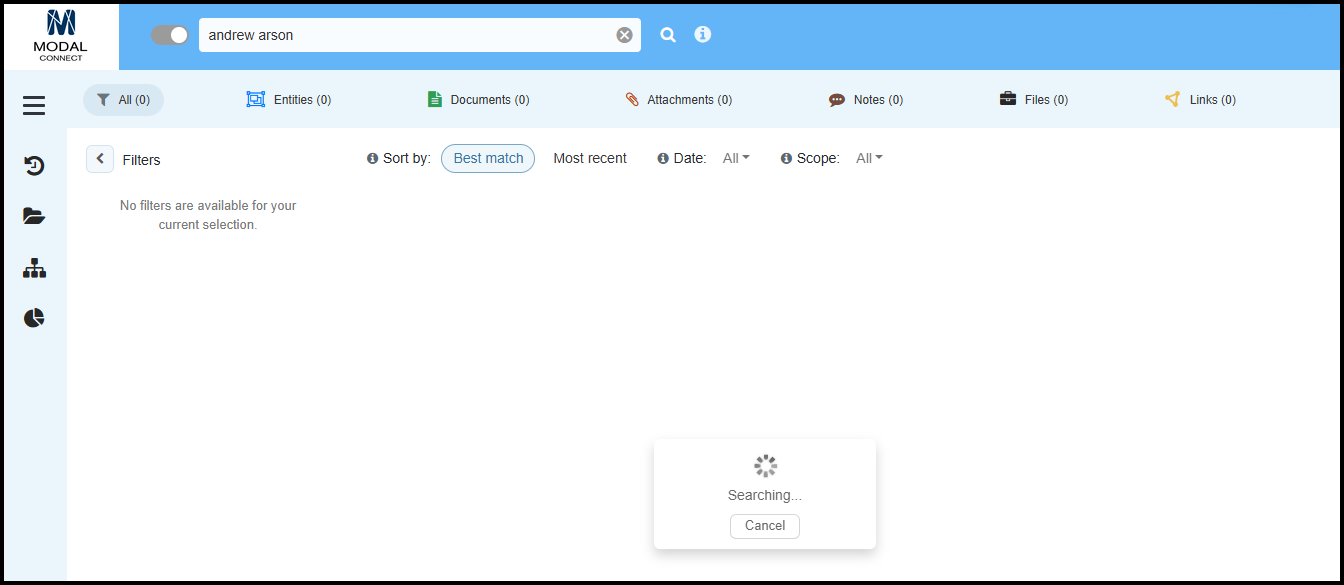
To start another search, either overwrite the current search terms or click x to remove them and enter your terms, click Enter or the search button.
To enable ModalSearch AI or switch back to the standard Search, click the button on the left of the search box. Note that on the Homepage (with ModalSearch AI enabled) the Files, Documents and Tasks table lists are no longer shown. The left side Recents menu remains available.
 About Search Terms
Search terms are the content and/or properties being searched for and can include - text, numbers, dates either singly or in combinations of. Separate each term with a space. Search terms are not case sensitive.
The default search returns results that contain all of the given search terms.
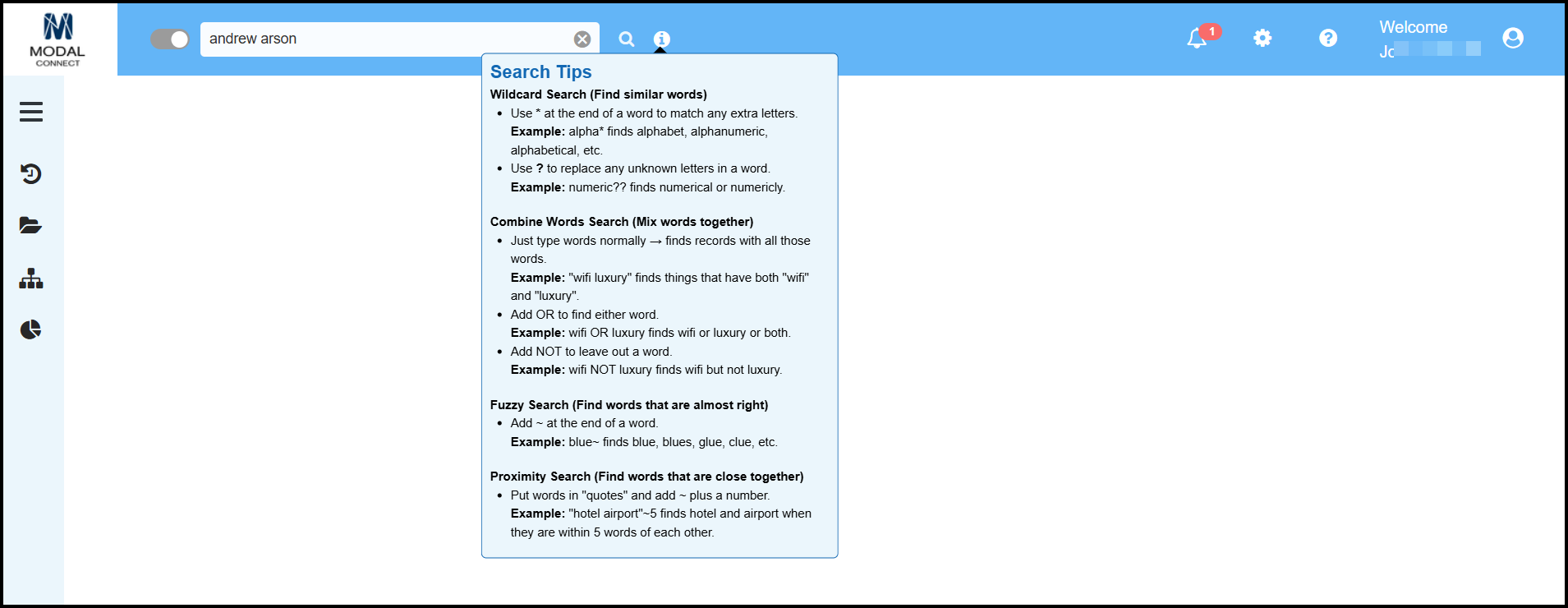
The Search Tips show examples of different operators that can be applied to your search terms. For example to limit the search to an exact match put quotes around the search terms. Or to expand a term use the * operator. The search tips can be viewed by hovering over the i (info) button or click on the i to keep the tips open (until the next click).
Search Operators
The following operators can be applied to search terms.
- Best Match; leave a space between each term to return results ranked on best match for all search terms regardless of the order of the words.
Example: john smith 123123 returns results that contain all 3 terms - Exact match (find the exact phrase). Put the terms in "quotation marks" to search for the exact phrase. Example: "john smith" finds and ranks records that contain the exact name “john smith” first. Can also be used in combination with Best Match or other operators - example “john smith" 123123
- OR operator enables a search for results that contains either term given e.g both terms do not need to (but may) appear in the same result as it could be either OR. Note; OR must be added between terms and in capitals with a space between OR and the terms. Example book OR magazine
- Wildcard* search uses the * character to search for single or multiple options either within or after the term. e.g but* finds but, butch, butter, butternut etc.
- Use ? to replace letters anywhere within or at the end of a word. Multiples are accepted e.g use? to replace a single letter, ?? to replace 2 letters or ??? to replace 3
- Proximity Search Put words in quotes followed by the Tilde character ~ and by the number of words nearby to find terms that are near to each other e.g. "andrew arson"~8
- Fuzzy Search uses the Tilde character ~ after a term to find variations of a term.
- Add NOT to leave out any results containing a word e.g book NOT magazine will not return results that contain both book and magazine.
- -Exclude condition uses a hyphen - character (instead of NOT) which is placed immediately (no space between) in front of a search term to exclude a term from the search. Cannot use any other operator against a word with the exclude operator.
- Apostrophes: Terms that include an apostrophe must either include the apostrophe or replace with a single ? or *
- Hyphenated Terms: to find a hyphenated term include the hyphen, or replace the hyphen with ? or * e.g anne-marie, anne?marie or anne*marie
- Date Search: Results are dependent on the format of saved date data. A Phrase search is useful for finding best match, otherwise the default match applies which is much broader. Although the date separator symbol / is ignored, it can be used or replaced with a space "12/03/1985" or "12 03 1985".
Note: A wildcard search cannot be used with an exclude operator - against the same term e.g -Joh*
A search using both the wildcard and exclude (or NOT) operators on different terms is valid e.g Joh* Smith* -Smithson.
A wildcard search cannot be used on a hyphenated search term e.g Mary-A* or *ary-Ann as the hyphen also represents the exclude operator.
In both of these scenarios the search is canceled as it is using both the exclude and partial conditions which cannot apply both to a single term
Search Results Page Layout and Features
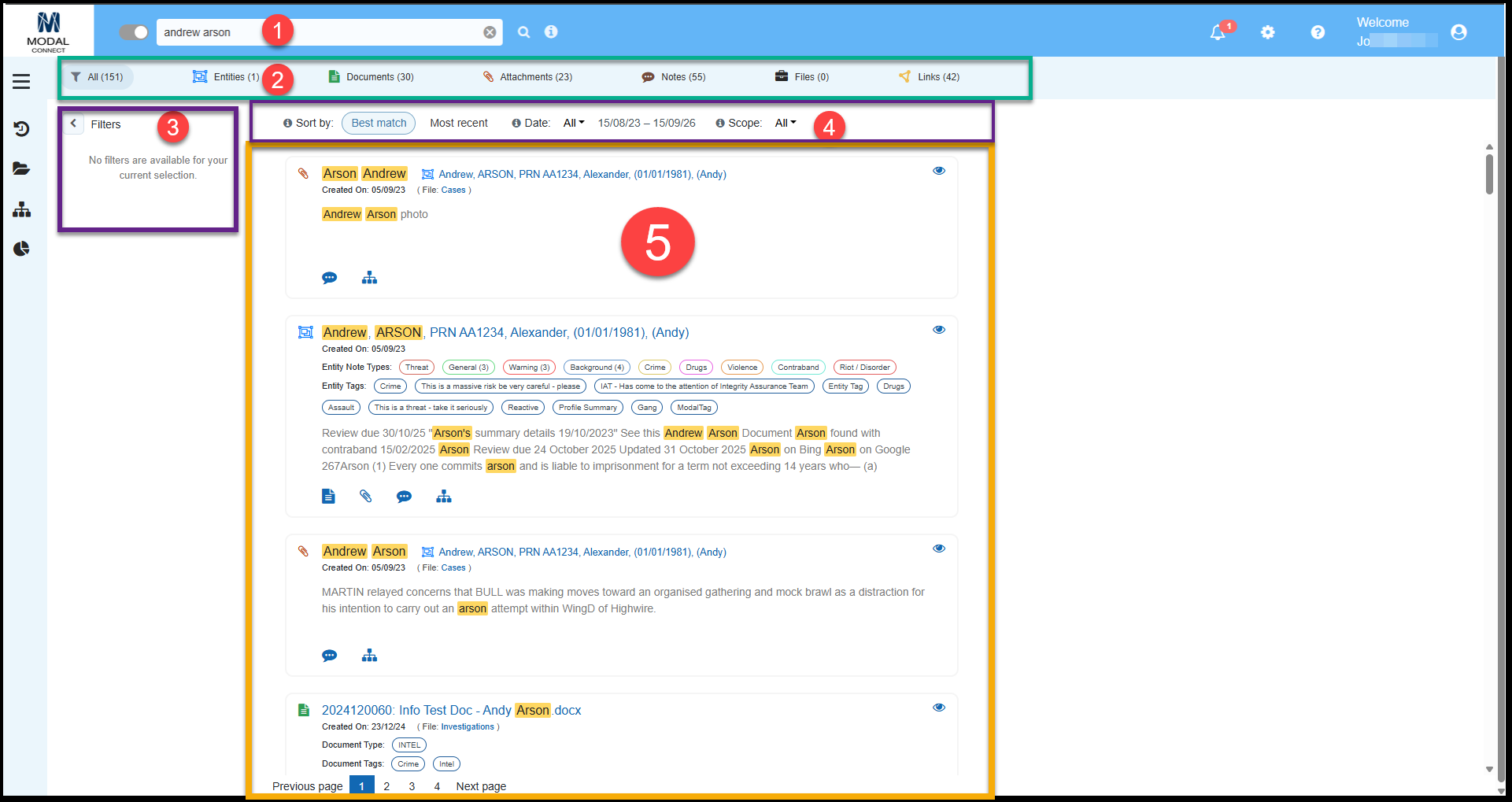
The Search results page has the following layout and features;
- Search box in the top bar (always visible)
- Categories, which include a result count per category which include; All results (default), Entities, Documents, Attachments, Notes, Files and Links.
- Filters (available on selected categories). When filters are applied the category count updates.
- Sort results by Best match (default) or Most Recent, Date range selector (the default is set by your Organisation). Scope - All is the default with the option to sort by Content or Properties.
- Search Terms are highlighted within the results which are shown on individual cards with a maximum of 50 cards listed per page. Each result card shows the icon of the category the results is sourced from. Note the results count is based per card, not the number of times the search terms appear within a result (this goes towards the ranking). The highlighted search term may only be visible within the Preview or for Links hovering over an Entity name where the full title can be viewed.
About Categories
Results are listed by category with the number of results per category next to the category name. The default category is All which lists all results and shows the total number of results found. The All count shows once all the other category counts have completed.

To view results by a single category click on - select the category name.
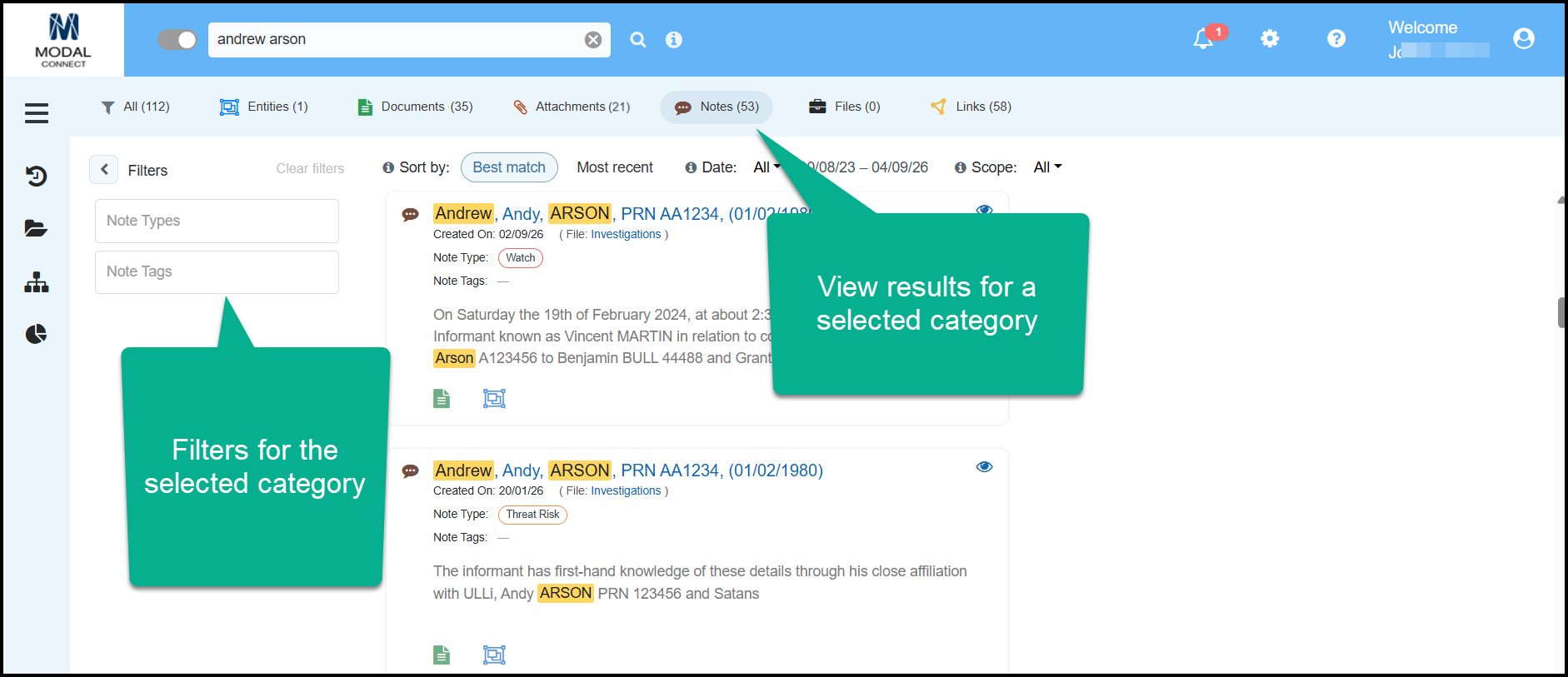
- All includes all results found for the search terms sourced from Entity profiles, Documents, Attachments, Notes, Links or Files. (All is the default category).
-
 - includes results found for the search terms sourced from Entity Profiles from the title, summary content and or Entity properties.
 -
 - results are sourced from the Document's title, number and Document content. Does not include the Document Entities list.
 -
 - results are sourced from Documents or Entity Profile Attachments (label, description, content).
 -
 - results are sourced from Document notes or Entity Profiles notes.
 -
 - results are sourced from the File Title and number.
 -
 - results are sourced from Entity Links
Category Results, Features and Filters
Result cards for individual categories include the details and filters as set out below.
Note: Results are shown as text and does not include images or table, spreadsheet formatting.
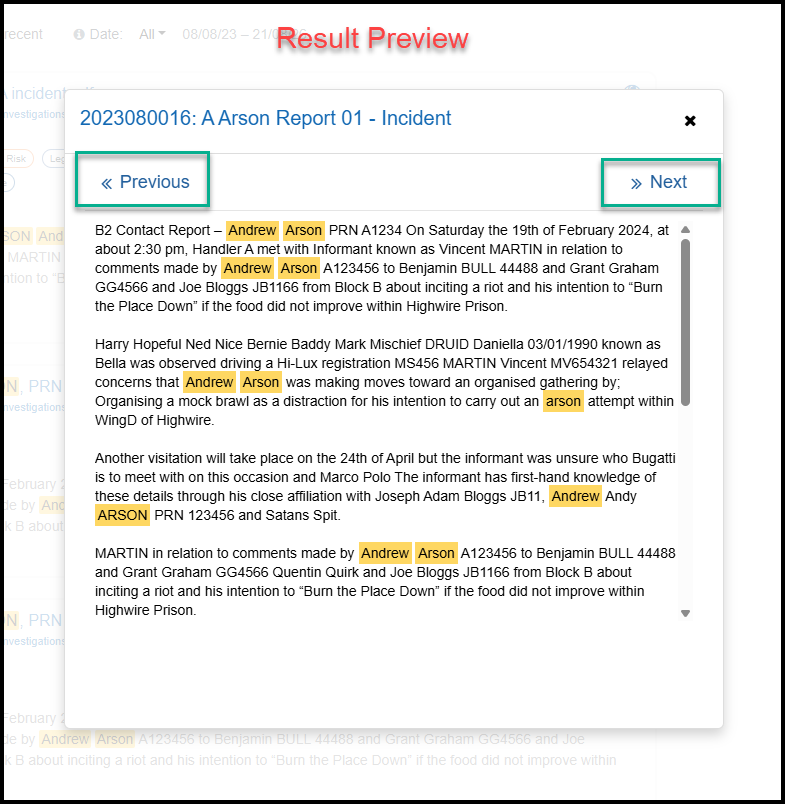
Preview: To view a Preview, click on the eye icon in the result  . The full (text) content of the source content is available within the Preview pane and search terms highlighted. To view the following result's preview without returning to the list, use Next (or Previous) within the preview. Links is the only category with no preview available.
Navigation - clicking on any linked detail on the result opens the source in a new tab.
Filters: the selected category's results and count, update as filters are applied. See more About Filters
Entities:
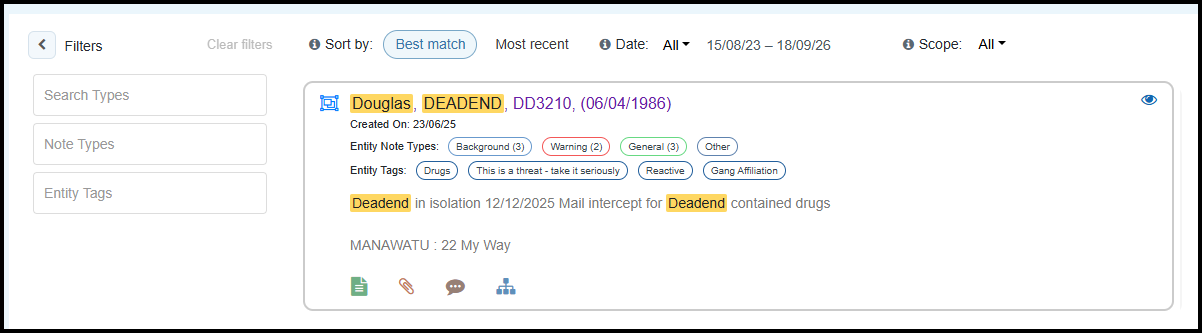
- Entity icon and Title (linked to the Entity's Profile)
- Entity profile Created On date
- Entity Note Types (includes a count for multiple notes of the same type)
- Entity Tags
- Entity Summary (maximum of 3 lines of text).
- Preview contains all summary content and any other properties.
- Icons linked to related content.
- Navigation - Click on the Entity title to open the Profile.
Filter Entities results by;
- Search Types
- Note Types
- Entity Tags
Documents
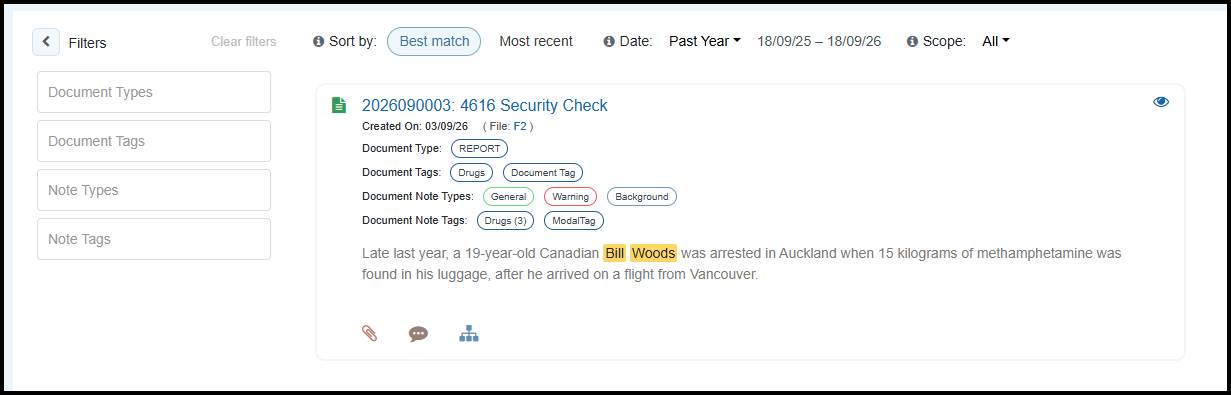
- Document icon, number and Title
- Created On date and the related File name (links to File)
- Document Type
- Document Tags
- Document Note Types
- Document Note Tags
- Document content (text only, maximum of 3 lines)
- Preview - Document content and Document Properties
- Icons linked to related content.
- Navigation - click on the title to open the source Document
Filter Document results by;
- Document Types
- Document Tags
- Note Types
- Note Tags
Attachments
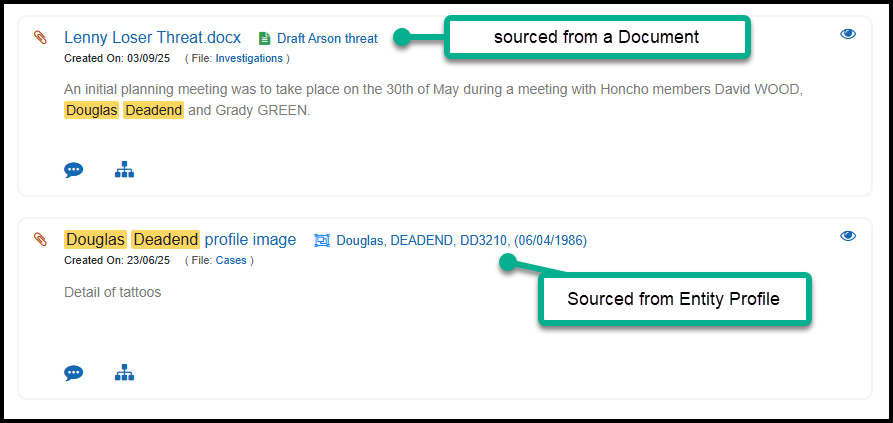
- Attachment icon and Title. Attachment source - Entity Title or Document Title
- Created On date. Related File title (linked to File).
- Attachment Title, description and content (text only).
- Preview - full attachment content.
- Icons to related content from the source Entity profile or Document
- Navigation - click on the attachment title to view it in the source Document or Entity Profile. Click on an Entity title to open that Profile.
Notes
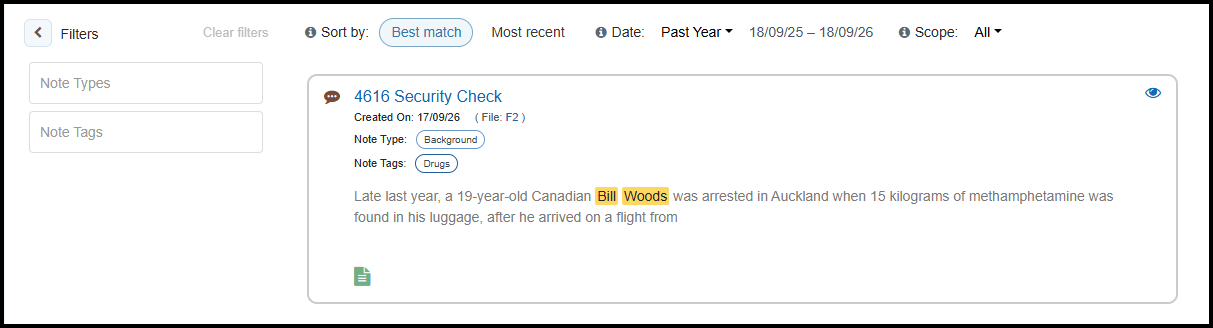
- Note icon and source - Document or Entity Profile Title
- Created On date. Related File Title (linked to File).
- Note Type
- Note Tags
- Note content
- Preview - full note content
- Icon links to the source document
- Navigation - click on the title, opens the Note in the source Document or Entity Profile
Filter Note results by;
- Note Types
- Note Tags
Links
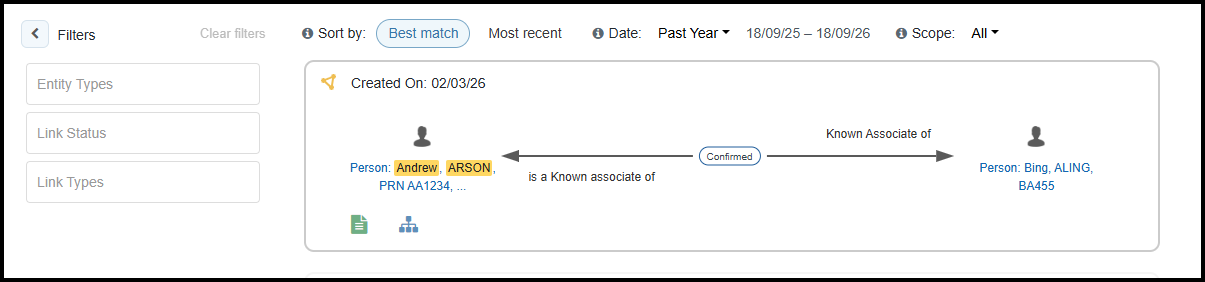
- Link icon
- Link Created On date
- Left to right - From Entity's Title > Link status - Link forward description (above the line and aligned right ) - Link reverse description (where available) below the line, left aligned > To Entity's Title. Hover over the Entity title to view all title details. Hover over the status line to view any time dependency record.
- Icons link to the source Document and the Document's Link chart.
- Navigation - click on either Entity to open their Profile
Filter Link results by;
- Entity Types
- Link Status
- Link Types
Files
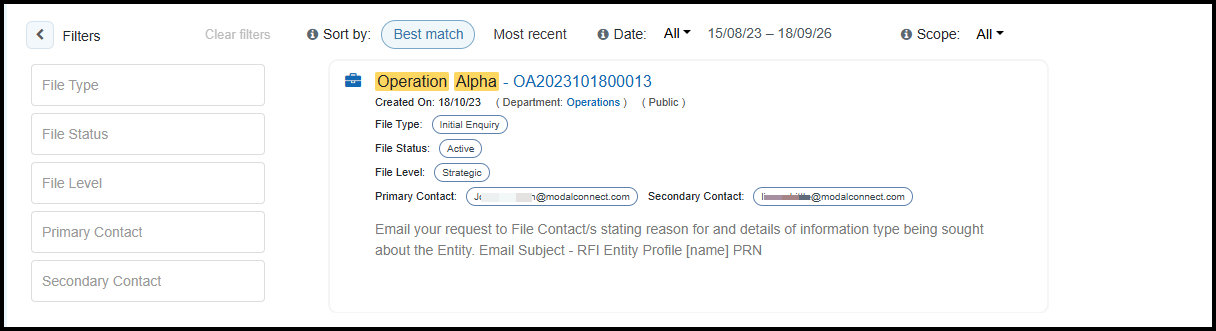
- File icon, Title and number
- Created On date, Department (linked) and visibility
- File Type
- File Status
- File Level
- Primary Contact and Secondary Contact
- Contact message
- Navigation - click on he title to open the File.
Filter File results by;
- File Type
- File Status
- File Level
- Primary Contact
- Secondary Contact
About Filters
Filters can be applied in combination and are available in the Entities, Documents, Notes, Links and Files categories.
Select the required values from filters and results are updated including the category count which updates to reflect the number of results. To reset a category's filters, select Clear Filters which returns all results for the category.
Note: Multiple Filter Selections
When selecting multiple values from a filter e.gTags, Document types, or Note types, the filters are applied using OR logic.
This means that a result will be returned if it matches any of the selected values within a filter category.
For example, if you select Tag A and Tag B, the search results will include any document, note or entity that is associated with; Tag A, or Tag B.
A result does not need to have all selected tags to be included. It only needs to match at least one of the selected tags.
The same behaviour applies when multiple Document types or Note types are selected.
Sort by Best Match or Most Recent
Results are sorted by 'Best match' (this is the default setting) with the option to select sort by 'Most recent' (created date). Click on the filter to change the value of the sort results by. Best match uses the same technology as Microsoft Bing and Office. Click on the info tool tip to view scoring details.
Search by Date Range
Results returned are based on both the search terms and the source creation date,e.g when the Entity, Document, Note, Attachment, Link or File was created. The default system setting is "Past Year", click into the date setting where there are some preset ranges and the options to select All or a custom date range. If using a custom date range, results returned will only include content with a creation date within the selected date range. The date range shown once results are loaded shows from the earliest to the most recent created date for the result set returned.
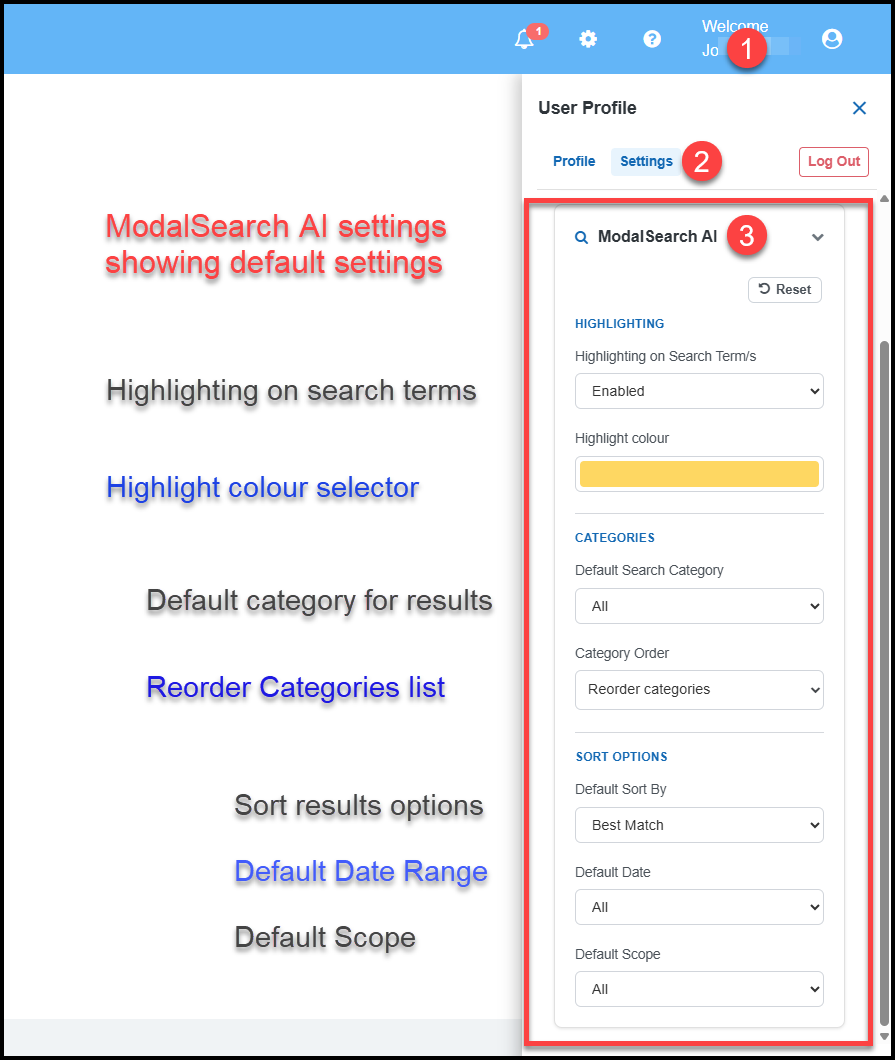
The date range default setting can be updated per user in the User's Profile Settings for ModalSearch AI. Changing the date range updates all category counts.
Sort by Scope
Results can be sorted by scope as follows:
- All: Displays all search results sourced from both content and properties.The All count updates when sorted by Content or Properties
- Content: sorts and highlights results based on content. Category counts are updated.
- Properties: sorts and highlights results based on properties (but does not remove any content detail from property results - e.g the Entity profile card). Document Property results show at the end of the document content so generally are only visible within the Preview. Category counts are updated.
| CONTENT | PROPERTIES |
| Document Title or number | Document Properties |
| Document content | Document Type |
| Document Attachment and description | Document Tags |
| Document Note content | Document Note Type |
| Document Properties | Document Note Tag |
| Entity label (Title) | Entity Properties (Label included) |
| Entity Profile Summary | Entity Profile Tags |
| Entity Note content | Entity Note Type |
| Entity Attachment content, title and description | Entity Note Tags |
| File Title and number | Entity Links |
| File contact message | Link Entity Type |
| Link Status | |
| File Type | |
| File Status | |
| File Level | |
| File Primary and Secondary contact |
If results returned are not as expected;
- check the date range to ensure it includes the source created date for when the Entities, Documents, Attachments, Notes, File or Links were created.
- have any Category filters been applied
- have results been filtered by Scope
Customise ModalSearch AI Settings
Users can set their preference of the ModalSearch AI of categories order, result colour highlights, sorting of results and the search date range.
- Open your User Profile panel
- Select Settings
- Select ModalSearch AI then set or select your preferences - these are updated immediately and can be changed or reset to the defaults at any time.